Add-ons / FluentCRM
Available now · Free
Recent Posts SmartCodes for FluentCRM
Put your latest WordPress blog posts into any FluentCRM email with one SmartCode. A list of recent posts, a card, a button, or the full text of the newest post in one category, in campaigns, sequences, recurring campaigns and automations.
Free forever · Open source (GPL) · One PHP file · FluentCRM free or Pro
FluentCRM add-on
Free
No account · no email · no license key · unlimited sites
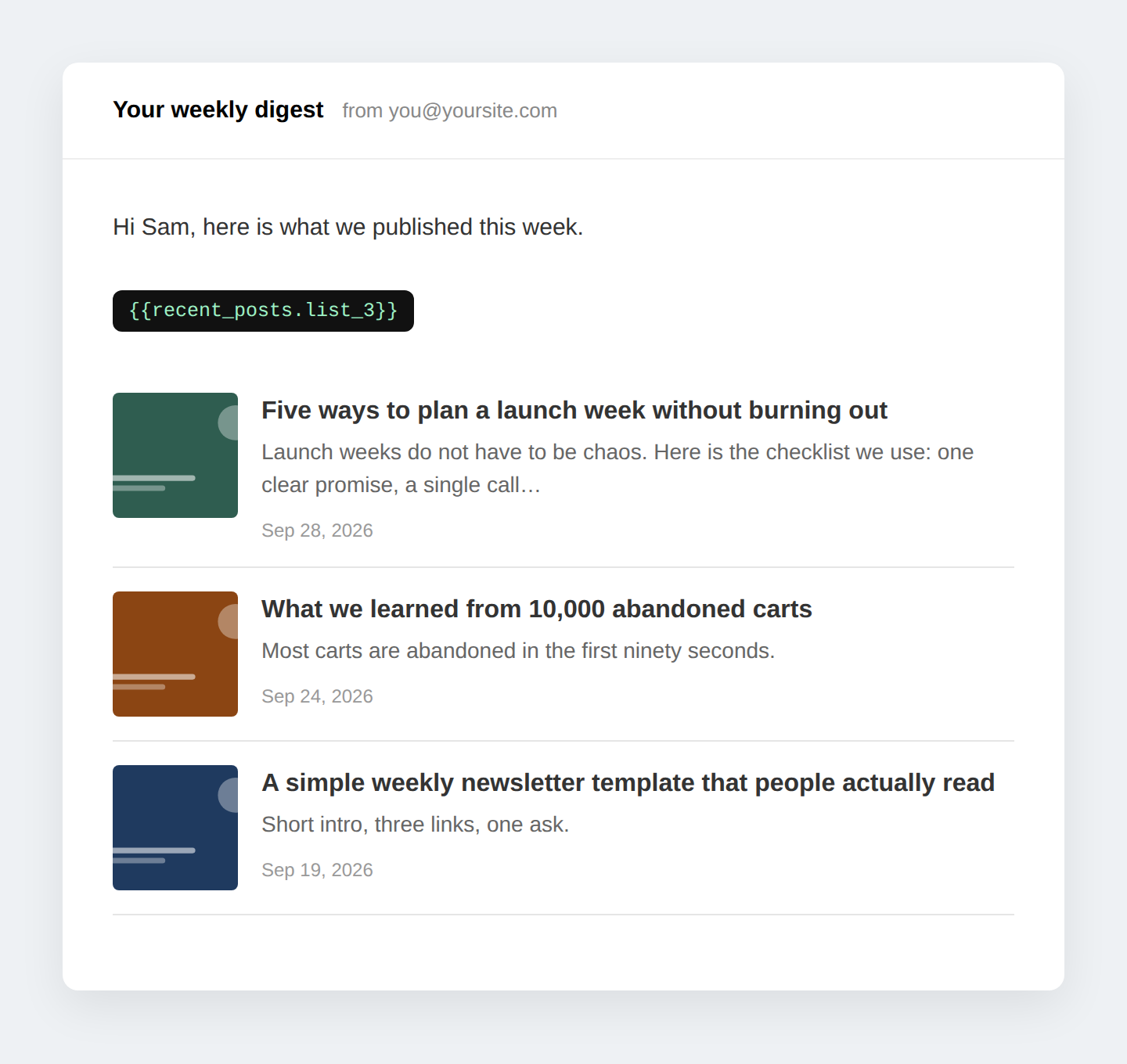
{{recent_posts.list_3}} in the email editor. Your three newest posts render with thumbnail, title, excerpt and date when the email sends.At a glance
13
SmartCodes, ready to paste into any email
1
PHP file. No settings page, no external service
Any
category, by slug or ID, on every SmartCode
$0
forever. GPL licensed, source on GitHub
What is Recent Posts SmartCodes for FluentCRM?
It is a free WordPress plugin that adds a Recent Posts group to the SmartCode dropdown in the FluentCRM email editor. SmartCodes are the merge tags FluentCRM already uses for things like {{contact.first_name}}. This add-on gives you thirteen more, all about your blog: the newest posts as a list, the newest post as a card, its title, excerpt, link, image, a button, or its complete content.
Every SmartCode accepts a category, so one site can run several category-based newsletters: a daily devotional from one category, a weekly digest from another, a “new episode” email for the podcast category. The plugin reads posts straight from your WordPress database when the email is sent. There is no RSS feed to configure, no third-party service, and nothing to sync.
FluentCRM’s built-in Latest Posts block only works in the visual block editor and can’t pull the full body of the newest post from a specific category. This plugin works anywhere FluentCRM parses SmartCodes, including the classic and raw HTML editors, automation emails and recurring campaigns.
Use it for
- A daily email that sends today’s post. Recurring campaign, daily, body:
{{recent_posts.latest_body_category_daily}}. - A weekly digest. Recurring campaign, weekly, body:
{{recent_posts.list}}for the five newest posts. - A “new post” notification. FluentCRM Pro automation on post publish, email body:
{{recent_posts.latest_full}}. - A “new episode” button when episodes are posts in a podcast category:
{{recent_posts.latest_button_text_Listen-Now_category_podcast}}. - A welcome sequence that stays fresh. Put
{{recent_posts.list_3}}in the last email of an onboarding sequence and it always shows the current three posts. - Products or any custom post type with the shortcode:
[upfluent_recent_posts count="4" post_type="product"].
Every SmartCode
Open the SmartCode dropdown in any FluentCRM email and look for Recent Posts, or type the code by hand.
| SmartCode | What it inserts |
|---|---|
{{recent_posts.list}} | 5 newest posts: thumbnail, title, excerpt, date |
{{recent_posts.list_3}} | 3 newest posts |
{{recent_posts.list_10}} | 10 newest posts |
{{recent_posts.latest_full}} | Newest post as a card: image, title, date, author, excerpt, Read More button |
{{recent_posts.latest_body}} | The complete content of the newest post |
{{recent_posts.latest_title}} | Newest post title |
{{recent_posts.latest_excerpt}} | Newest post excerpt |
{{recent_posts.latest_url}} | Newest post URL with https:// |
{{recent_posts.latest_link}} | Newest post URL without https://, for FluentCRM link fields that add it themselves |
{{recent_posts.latest_slug}} | Newest post slug, for building your own URLs |
{{recent_posts.latest_link_html}} | Newest post title as a clickable link |
{{recent_posts.latest_image}} | Newest post featured image |
{{recent_posts.latest_button}} | Styled “Read Latest Post” button |
Filter by category
Add _category_ and a category slug or ID to the end of any SmartCode. Underscores in the slug become hyphens, so press_releases matches the press-releases category.
{{recent_posts.list_3_category_news}}
{{recent_posts.latest_body_category_12}}
{{recent_posts.latest_full_category_press_releases}}
Examples and styling
Everything renders as email-safe HTML: table layouts and inline styles that hold up in Gmail, Outlook and Apple Mail. Below is real output from the plugin with sample posts. Colors, labels and fonts are yours to change.
The newest post as a card
One SmartCode, filtered to a category. Featured image, title, date, author, excerpt and a Read More button, all linking to the post.
{{recent_posts.latest_full_category_marketing}}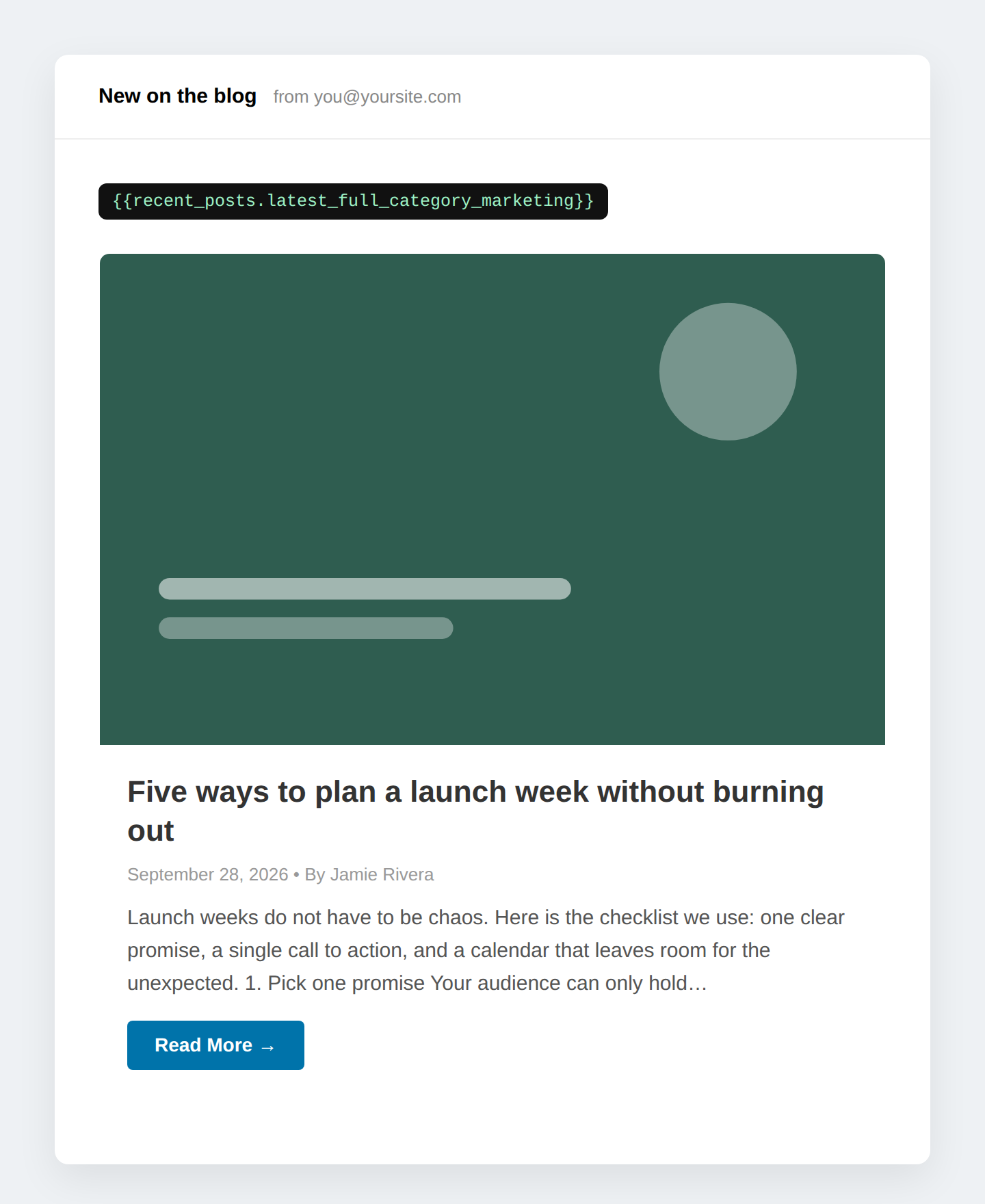
latest_full card. Change the wording or layout with the upfluent_card_html filter.Buttons you style from the SmartCode itself
Add _text_, _bg_ and _color_ to latest_button. Use hyphens for spaces and hex colors without the #. Combine them with _category_. For padding, radius and font size, use the [upfluent_button] shortcode.
{{recent_posts.latest_button}}
{{recent_posts.latest_button_text_Listen-Now}}
{{recent_posts.latest_button_text_Read-Today's-Post_bg_8B4513_color_ffffff}}
{{recent_posts.latest_button_text_Latest-Marketing-Tip_bg_2f5d50_category_marketing}}
[upfluent_button text="Shop the drop" bg_color="#111111" radius="999px" padding="14px 32px" font_size="18px"]
upfluent_button_defaults filter.The full post, in your own typography
latest_body inserts the complete post content, wrapped in a container you can style. The example below uses a serif face, a cream background and a brand-colored rule with one filter in your snippet.
{{recent_posts.latest_body_category_marketing}}

// In the plugin file, or any PHP snippet:
add_filter( 'upfluent_body_styles', function () {
	return 'font-family:Georgia,serif;font-size:17px;line-height:1.75;color:#222222;'
	     . 'background:#fffdf7;padding:28px;border-left:4px solid #8B4513;';
} );
upfluent_body_styles filter applied.Shortcodes for finer control
Both shortcodes work in posts, pages and inside FluentCRM emails. Use them when you need a custom post type, want to hide images or dates, or want to size a button.
[upfluent_recent_posts count="5" category="news" show_image="yes" show_excerpt="yes" show_date="yes" post_type="post"]
[upfluent_button text="Listen Now" bg_color="#0073aa" text_color="#ffffff" padding="12px 24px" radius="4px" font_size="16px" font_weight="600" category="podcast"]
Features
1
Works everywhere SmartCodes work
Campaigns, email sequences, recurring campaigns, automation emails, the visual builder, the classic editor and raw HTML. If FluentCRM parses {{contact.first_name}} there, it parses these too.
2
One category per SmartCode
Append _category_slug or _category_ID to any code. Run a devotional, a digest and a podcast email from the same site, each pulling from its own category.
3
The whole post, not just a teaser
latest_body sends the complete post content through WordPress’s normal content filters, so blocks, embeds and shortcodes render the way they do on your site.
4
Email-safe by default
Table-based layouts and inline styles only. No external CSS, no web fonts, no scripts. Renders in Gmail, Outlook, Apple Mail and the rest.
5
Nine filters to make it yours
Change the query (exclude posts, add a tag, switch post type), rewrite any HTML, restyle the body, relabel the button, or change the “no posts” message. Every filter is prefixed upfluent_, with copy-and-paste examples at the bottom of the file.
6
Nothing to configure, nothing to pay
One file. Activate it and the SmartCodes appear. No settings page, no license key, no account. GPL licensed, with the source on GitHub.
How do I install it?
Three ways, all under two minutes. Pick the one that matches how you manage code on your site.
A · Easiest
Upload the plugin
B · Snippet
FluentSnippets or Code Snippets
- Open the PHP file from the zip or GitHub.
- Create a new PHP snippet and paste the whole file in.
- Save and activate the snippet.
- Uncomment any of the customizations at the bottom of the file.
C · Developers
Theme or mu-plugin
- Clone the repo or copy the PHP file.
- Drop it in
wp-content/mu-plugins/, or include it from your theme’sfunctions.php. - Add your
upfluent_*filters next to it. - Pull updates from GitHub whenever you like.
Full reference, filters and recipes: README · Docs
Requirements
- WordPress 5.0 or later and PHP 7.4 or later.
- FluentCRM 2.5 or later, free or Pro. Automations triggered by post publish need Pro; campaigns and recurring campaigns work on free.
- Featured images on your posts if you want thumbnails. Posts without one simply render without an image.
Customize it with filters
Every output passes through a filter. Add these to the plugin file, a PHP snippet or your theme.
| Filter | Arguments | Use it to |
|---|---|---|
upfluent_query_args | $args, $context | Change the query. $context is list, latest, button, card or body, so you can target one output. |
upfluent_list_html | $html, $posts, $count | Rewrite the list markup |
upfluent_card_html | $html, $post | Rewrite the card markup |
upfluent_body_html | $html, $post | Rewrite the full-content markup |
upfluent_body_styles | $css | Inline CSS on the full-content wrapper |
upfluent_button_label | $label | Default button text |
upfluent_button_defaults | $defaults | Default button colors, padding, radius, font |
upfluent_button_html | $html, $post, $opts | Rewrite the button markup |
upfluent_empty_html | $html | What to show when there are no posts |
Two examples. Brand every button once, and always send latest_body from one category:
add_filter( 'upfluent_button_defaults', function ( $d ) {
	$d['bg']    = '#8B4513';
	$d['color'] = '#ffffff';
	$d['text']  = "Read today's post";
	return $d;
} );

add_filter( 'upfluent_query_args', function ( $args, $context ) {
	if ( 'body' === $context ) {
		$args['category_name'] = 'daily';
	}
	return $args;
}, 10, 2 );
FAQ
Is it really free?
Yes. Free forever, no account, no email gate, no license key, unlimited sites. It is GPL licensed and the source is on GitHub. If you want to support the work, buy one of the paid UpFluent add-ons.
Does it work with the free version of FluentCRM?
Yes. SmartCodes are a core FluentCRM feature. Campaigns and recurring campaigns work on free. Automations that trigger on post publish need FluentCRM Pro.
How is this different from FluentCRM’s Latest Posts block?
The built-in block only works in the visual block editor and shows a list. These SmartCodes work in every editor and every email type, can be filtered by category, and can insert the complete content of the newest post, not just a list.
Can I send a daily email with today’s post automatically?
Yes. Create a recurring campaign in FluentCRM, set it to daily, and put {{recent_posts.latest_body_category_your-slug}} in the body. Use the recurring campaign’s “send only if new content” condition if you don’t want repeats on days without a post.
Can I filter by tag, author or a custom taxonomy?
Not from the SmartCode name, which handles categories only. Add a tax_query, author or any other WP_Query argument in the upfluent_query_args filter.
Can I show a custom post type, such as products or episodes?
Yes. Use the [upfluent_recent_posts post_type="product"] shortcode, or set post_type in the upfluent_query_args filter so the SmartCodes use it too.
Why is there a latest_link and a latest_url?
Some FluentCRM button and image link fields prepend http:// to whatever you enter. latest_link leaves the protocol off for those fields. Use latest_url everywhere else.
Does it use an RSS feed?
No. It queries your WordPress posts directly when the email is generated, so there is no feed to set up and no caching delay.
Will the email look right in Gmail and Outlook?
Yes. All output is table-based HTML with inline styles and no external CSS, which is what email clients render reliably.
Is it made by WPManageNinja?
No. It is an independent add-on by UpFluent. It is not affiliated with, endorsed by or supported by WPManageNinja, the makers of FluentCRM.
How do I get help or request a feature?
Open an issue on GitHub or email support@upfluent.io.
Your newest post,
in every email.